How to Capture and Download a HAR File
Overview
A HAR file (HTTP Archive) records network activity between your browser and a website. It helps our support team understand what’s happening behind the scenes—such as failed requests, slow responses, or errors—that may be causing the issue you reported.
Providing a HAR file allows us to:
See which network requests succeed or fail
Identify errors, timeouts, or performance bottlenecks
Diagnose issues that aren’t visible on the screen
When to Capture a HAR File
We may ask for a HAR file when you experience:
Pages failing to load or loading slowly
Errors during login or form submission
Features not working as expected
Intermittent or hard-to-reproduce issues
Before You Begin
Use the browser where the issue occurs
Close other tabs or windows, if possible
Reproduce the issue after you start recording
Steps to Capture a HAR File
Google Chrome / Microsoft Edge
Open the browser and go to the page where the issue occurs.
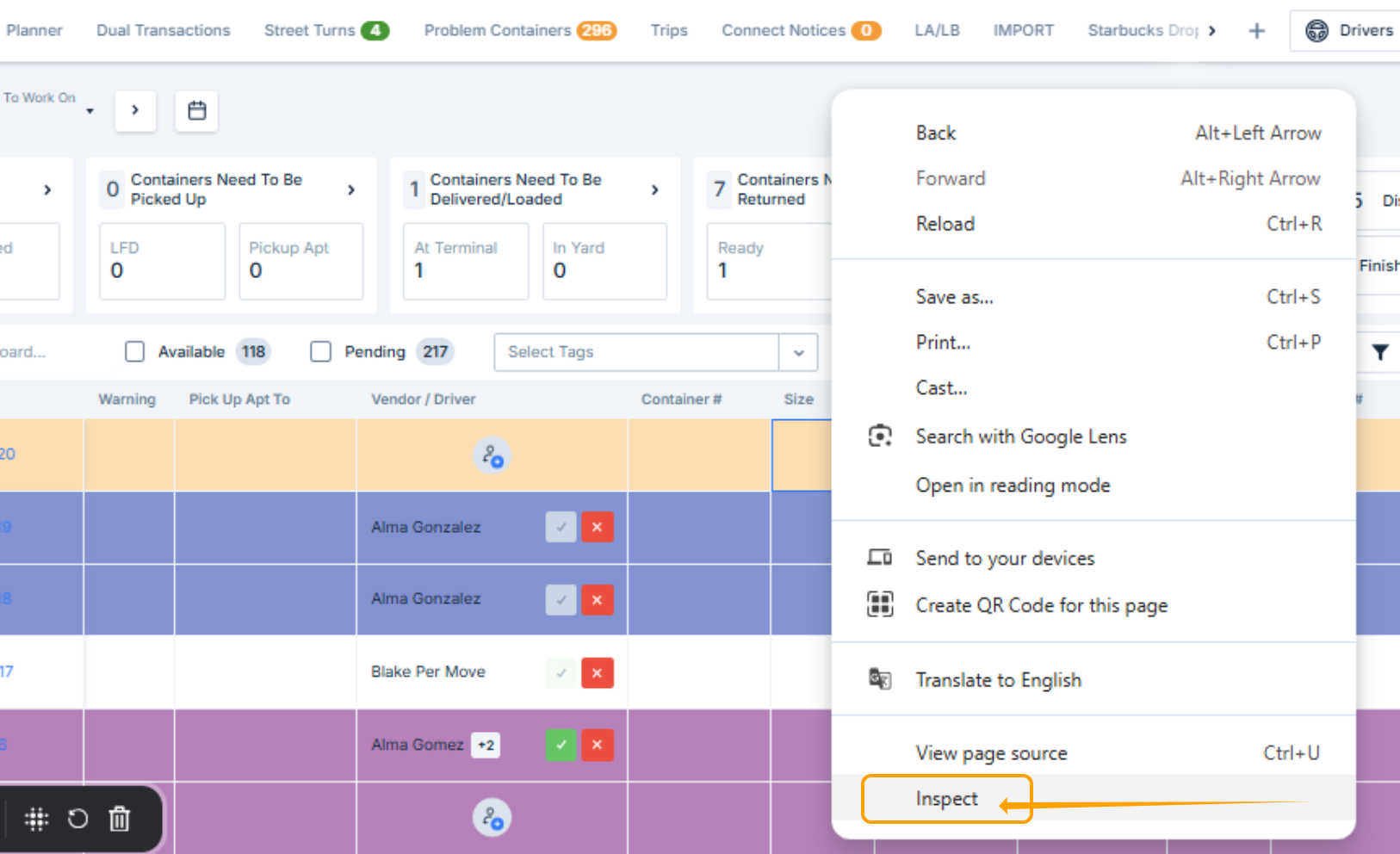
Right-click anywhere on the page and select Inspect.
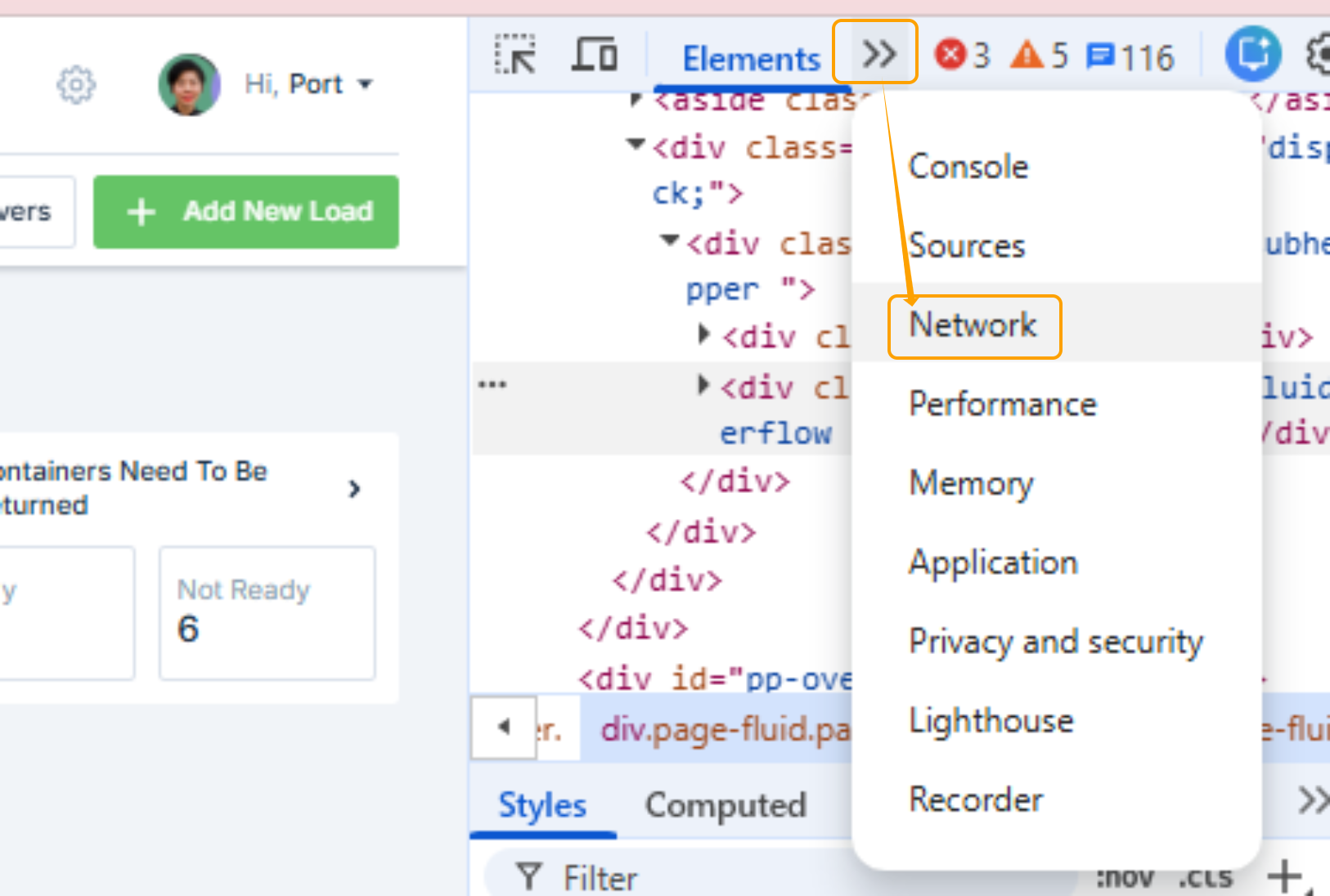
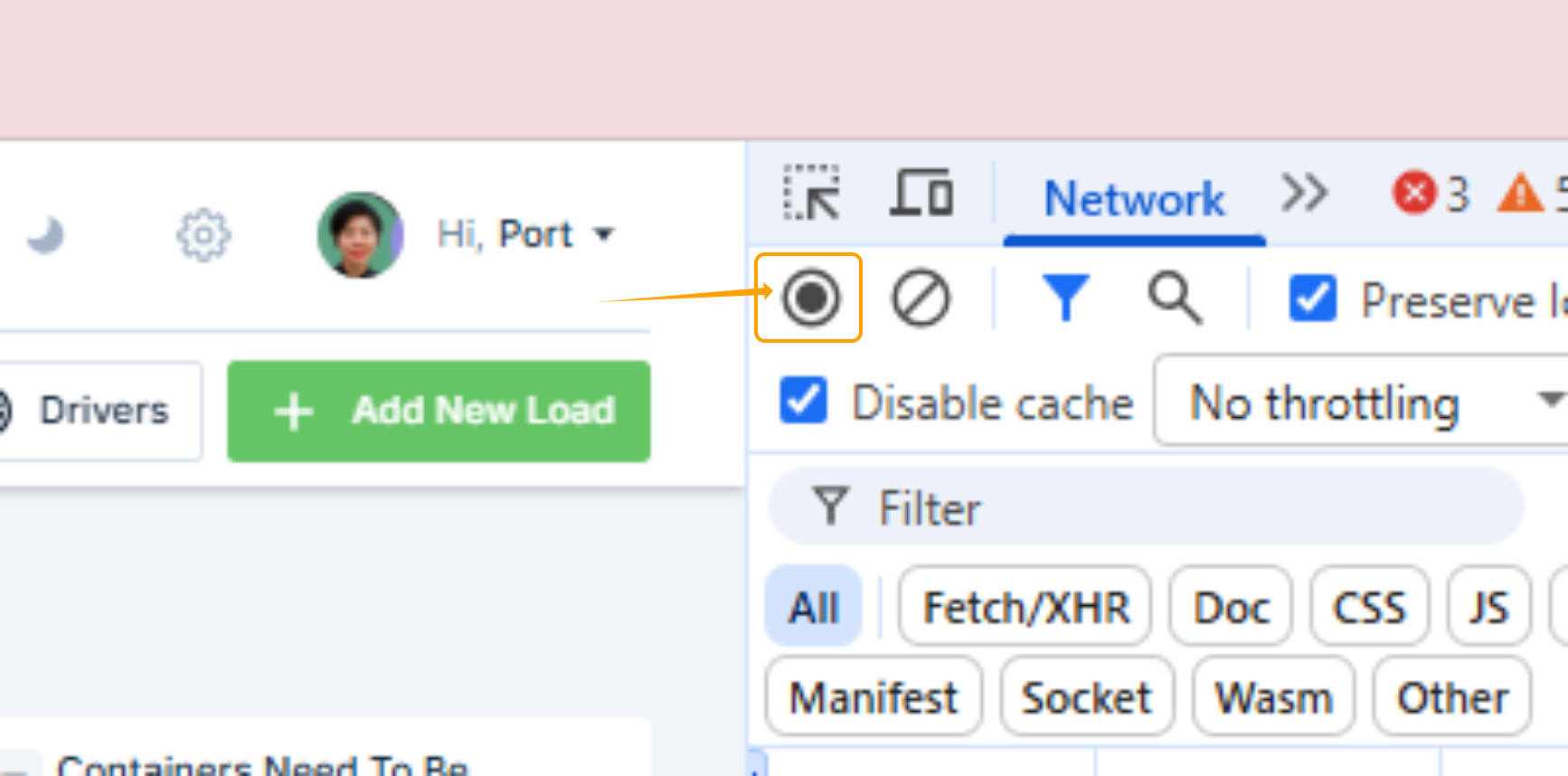
In the Developer Tools panel, select the Network tab.
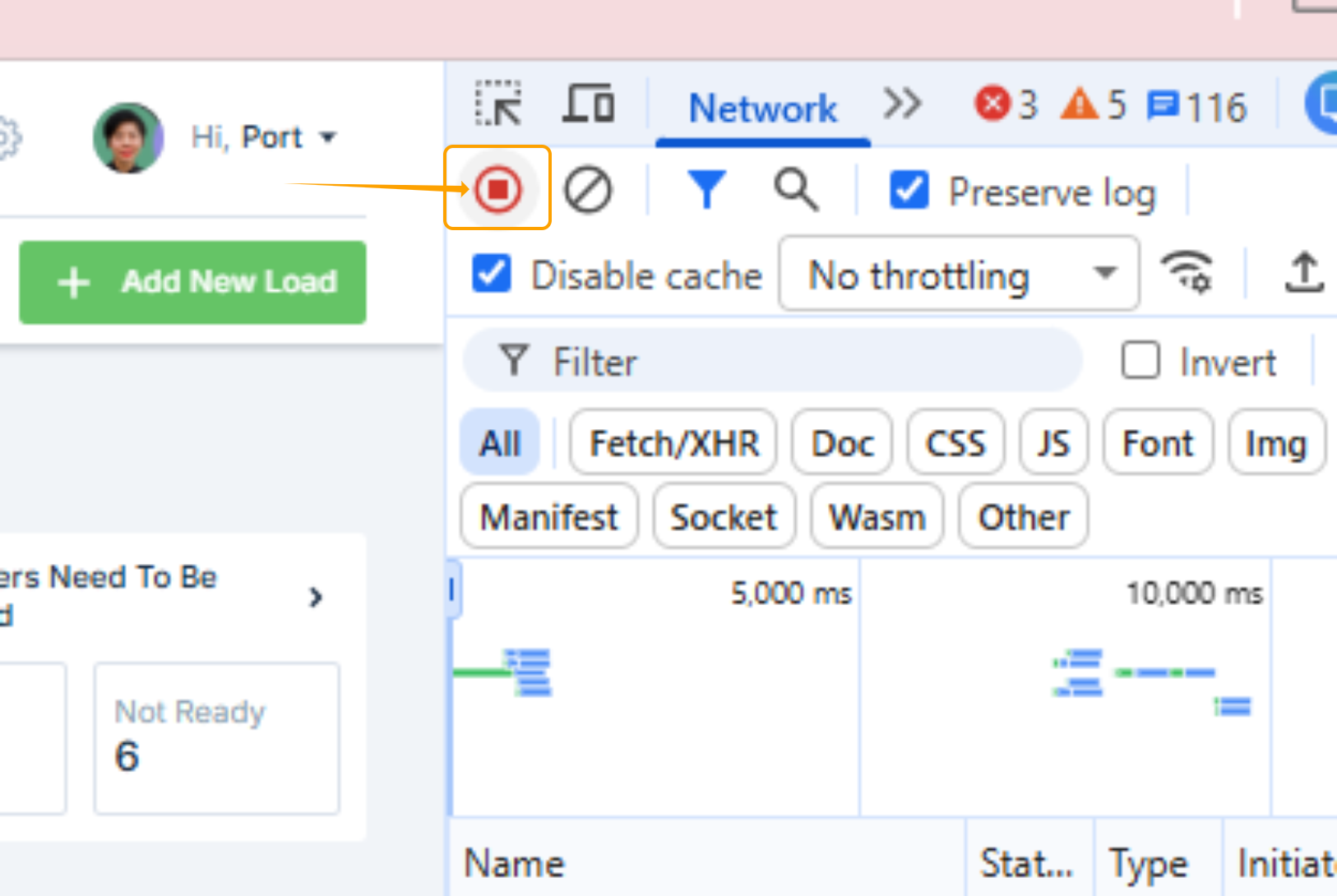
Ensure:
The Record button (●) is red
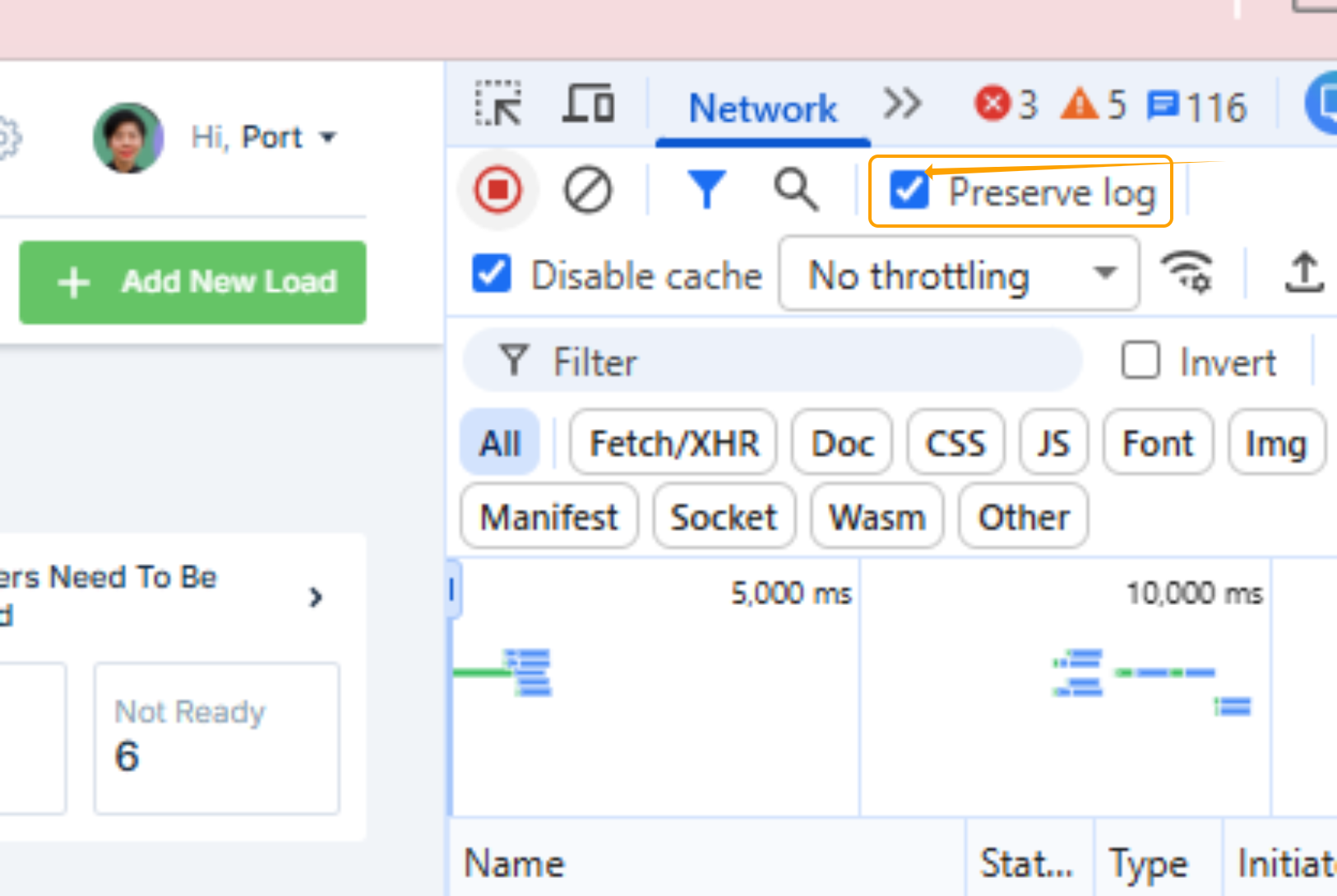
Preserve log is checked
Refresh the page.
Reproduce the reported concern in PortPro
After capturing the reported concern stop the recording. The button should no longer show as RED
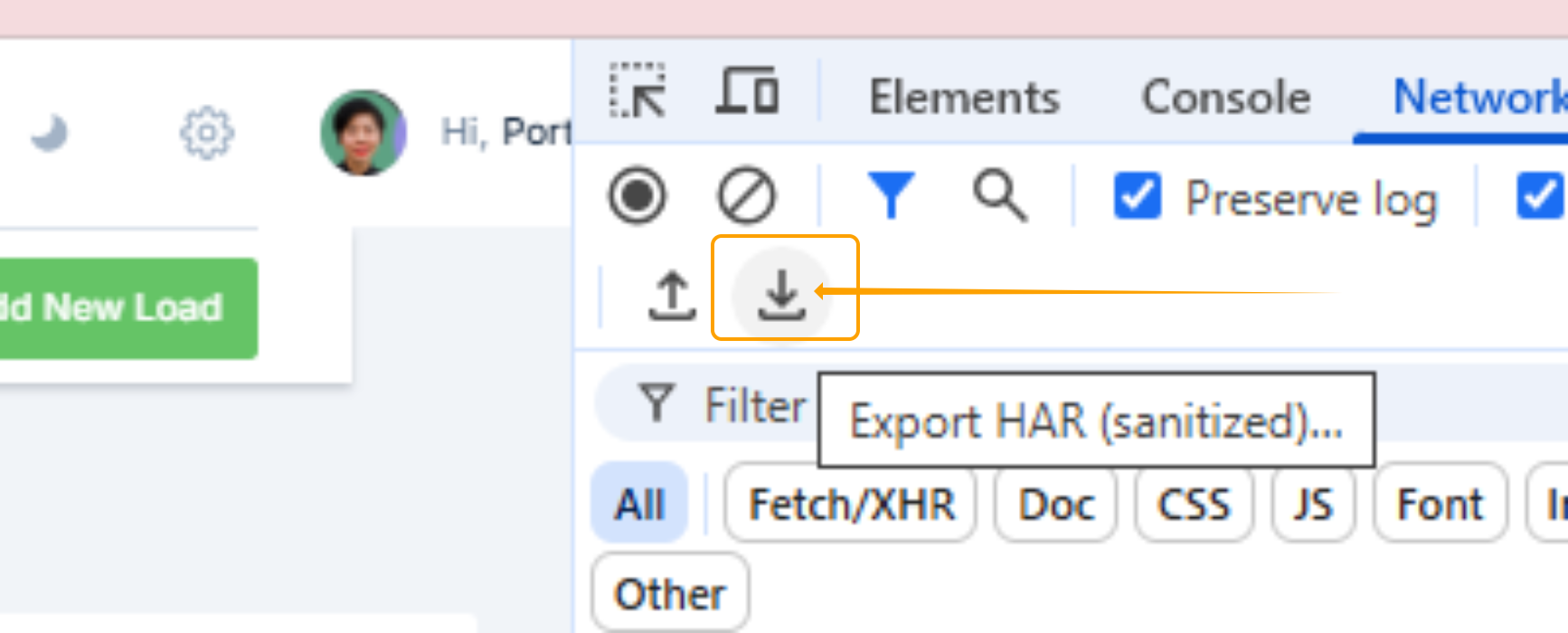
Download the Har file to your computer by Selecting the Export Har icon
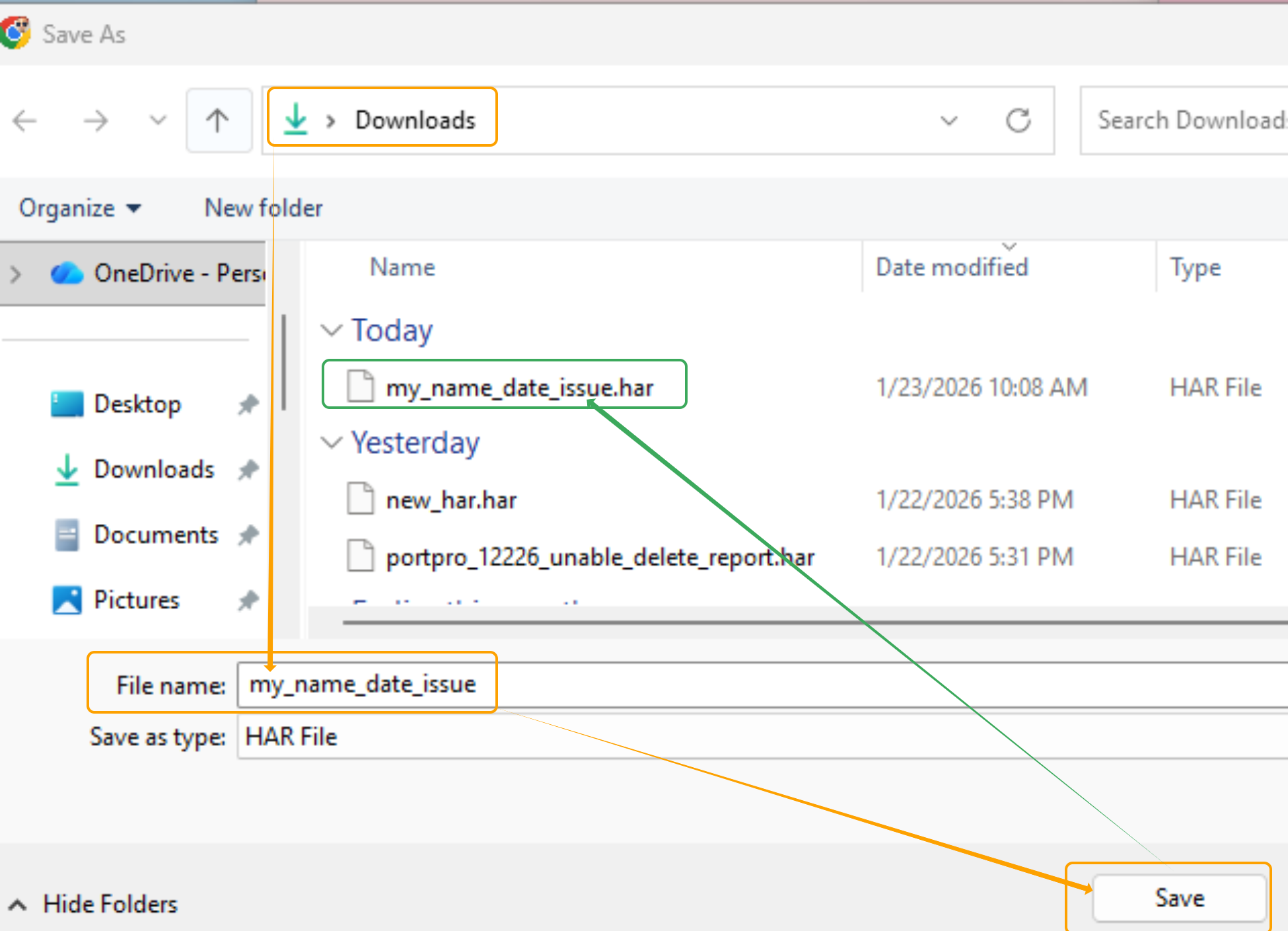
Save the file to your computer.
Mozilla Firefox
Open the browser and navigate to the affected page.
Right-click on the page and select Inspect.
Click the Network tab.
Refresh the page.
Reproduce the issue.
Click the Settings (⚙️) icon in the Network tab.
Select Save All As HAR.
Save the file to your computer.
Safari (macOS)
Open Safari and go to Settings > Advanced.
Enable Show Develop menu in menu bar.
Navigate to the page with the issue.
Select Develop > Show Web Inspector.
Open the Network tab.
Refresh the page.
Reproduce the issue.
Click Export HAR and save the file.
After Capturing the HAR File
Do not open or edit the HAR file
Upload the HAR file to chat or Send an email with the HAR file attached to support@portpro.io
- Connect with a Chat agent and upload the har file
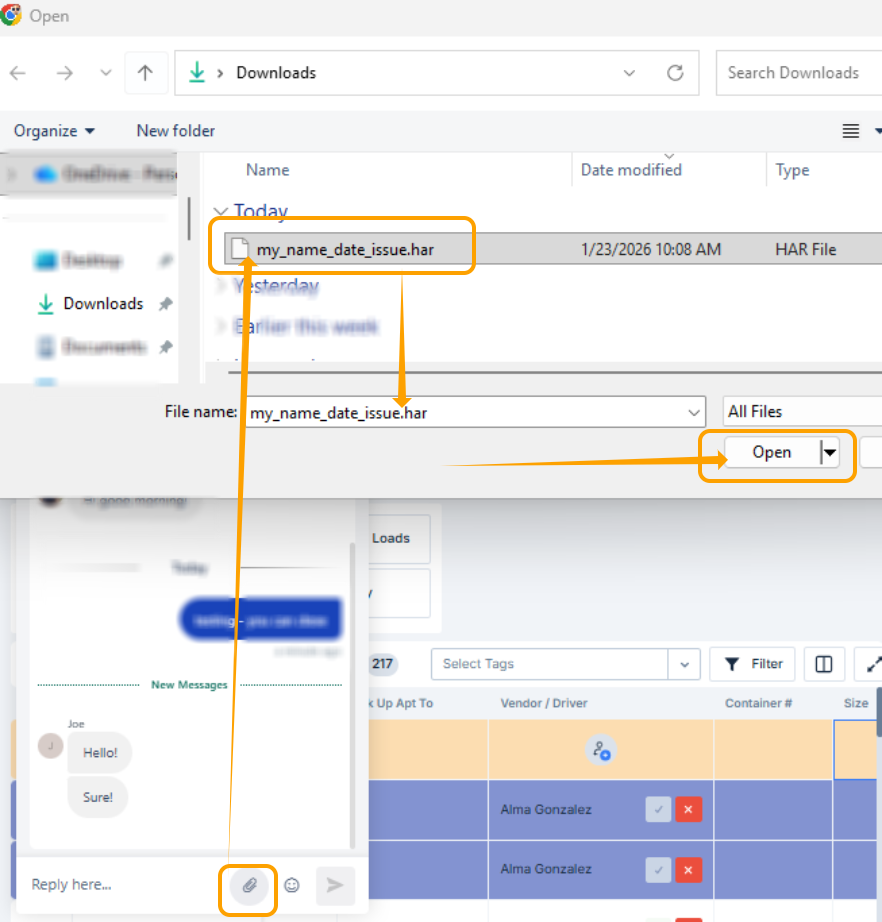
- Connect with a Chat agent and upload the har file
If the file is large, you may be asked to compress it before uploading.
Additional Notes
Try to capture the HAR file as soon as the issue occurs
If multiple attempts are needed, capture a new HAR file each time, or connect with a member of the Customer Support team and request to join a live meeting for assistance.
Was this article helpful?
That’s Great!
Thank you for your feedback
Sorry! We couldn't be helpful
Thank you for your feedback
Feedback sent
We appreciate your effort and will try to fix the article