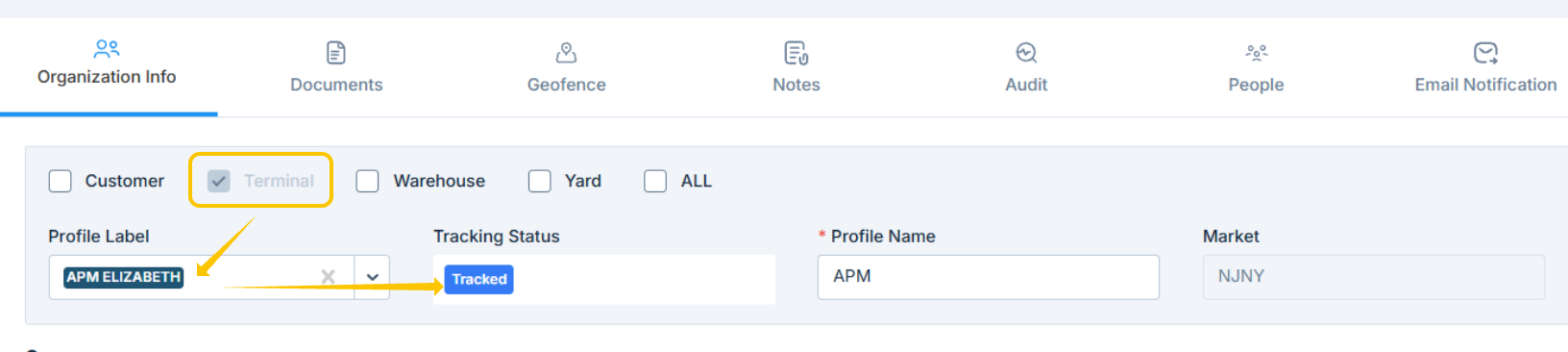
Terminal Profile Labels introduce a consistent, standardized way to identify terminals (ports and rails) in PortPro. Each terminal now includes a unique Profile Label, improving accuracy in tracking, load creation, and reporting.
Why This Matters
Before this update, terminals were identified by name, which often varied between accounts (e.g., Fenix, Fenix Marine, Fenix Marine Terminal, ect). Tracking accuracy was challenging with the variations of terminal profile names across the PortPro ecosystem.
With Profile Labels, every terminal now has a unique ID that
- Eliminates the need for tracking alias lists
- Reduces duplicate terminal profiles
- Improves tracking reliability across the PortPro ecosystem between Brokers and Carriers
- Simplifies terminal selection during load creation
Terminal Profiles
Terminal Profile includes three associated fields:
| Field | Description |
|---|---|
| Profile Label | Unique identifier assigned by PortPro |
| Tracking Status | Shows if PortPro provides tracking and whether credentials are valid |
| Market | Defines which market the terminal operates within |
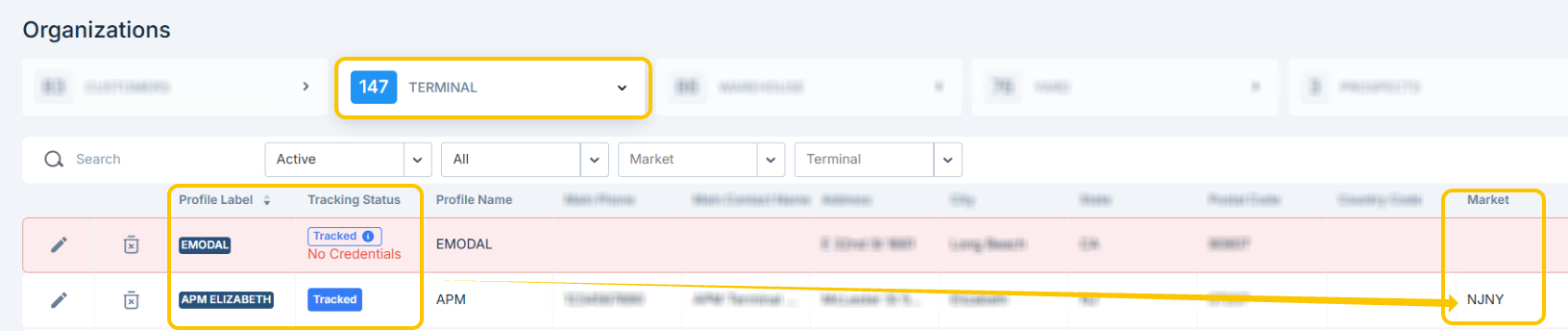
Note: Each active Terminal Profile has one unique Profile Label. If that profile becomes inactive, the same label can be reused.
Tracking Status Icons
When selecting terminals in drop-down menus (e.g., Pickup Location, Delivery Location), you’ll see icons showing the terminal’s tracking status.
| Icon | Status | Description |
|---|---|---|
 | Tracked | Tracking is active for this terminal |
 | Tracked (No Credentials) | Tracking available, but credentials need attention |
 | Not Tracked | Terminal exists but is not currently tracked |
| (blank) | User-Created | Profile manually created by a user |
Changes When Creating Loads
Field names and options have been updated in load creation forms to improve clarity.
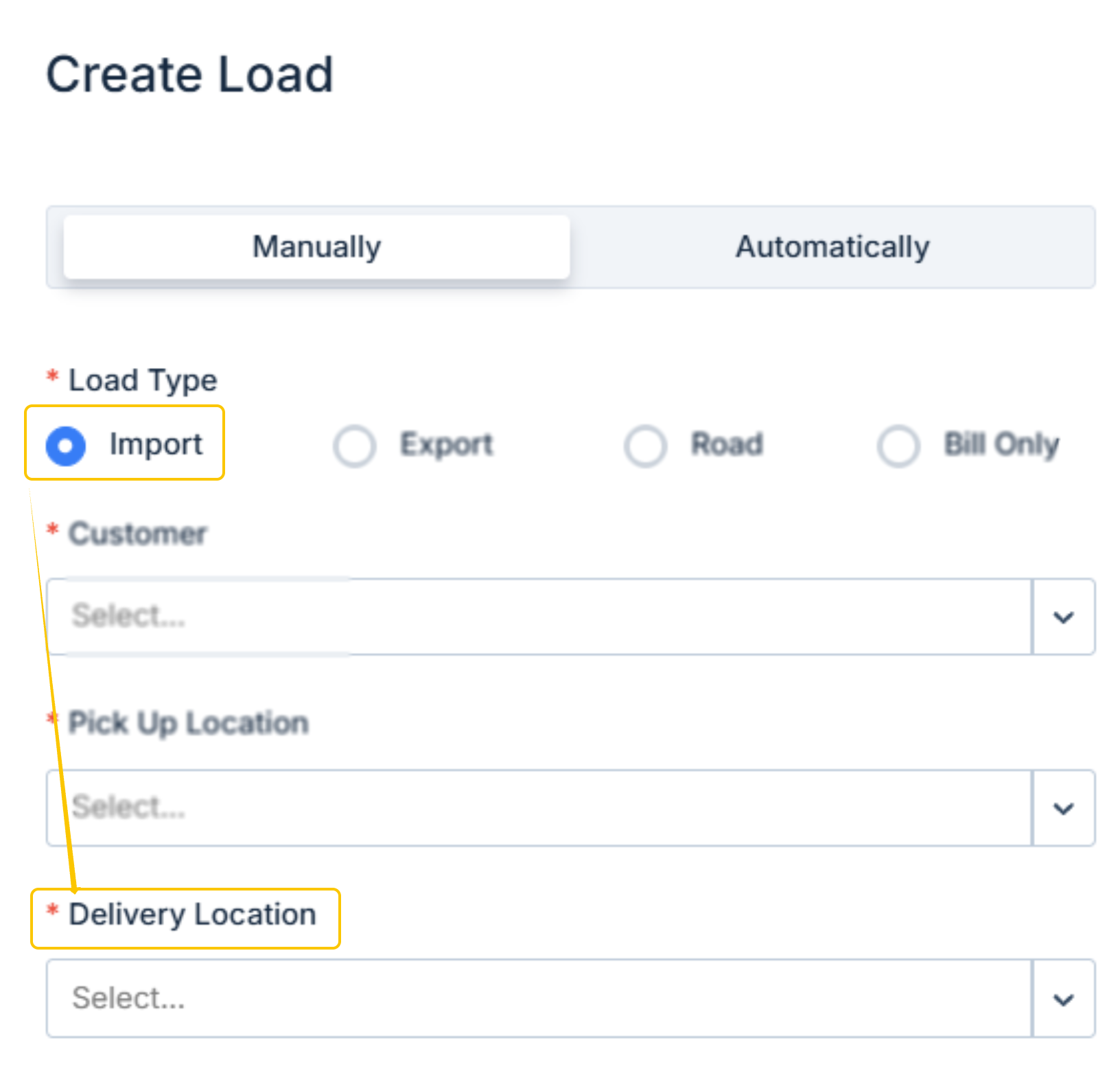
Import, Road, and Bill Only Loads
- “Port” → Pickup Location
- “Consignee” → Delivery Location
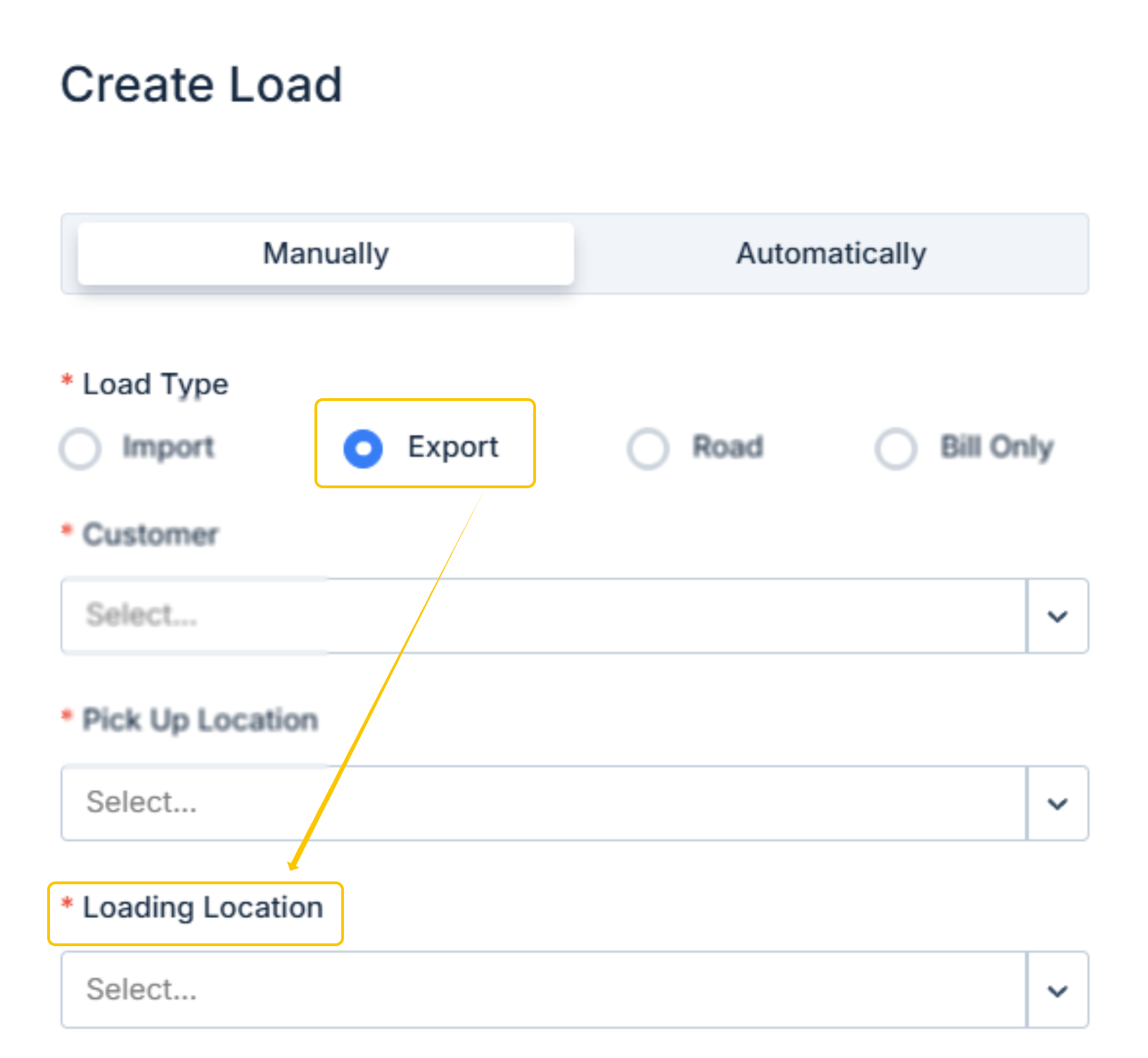
Export Loads
- “Port” → Empty Pickup Location
- “Consignee” → Loading Location
For export loads, the Pick Up Location field now includes options for: Port/Shipper, Consignee, Chassis, and All Types (but not “Customer Type”).
PortPro-Provided Terminal Profiles
PortPro maintains and provides a full list of system-generated terminal profiles to ensure data consistency.
- Add terminals from the Port Markets page.
- Profile Label and Address fields are read-only to protect data integrity.
- Terminal Name can still be customized by users.
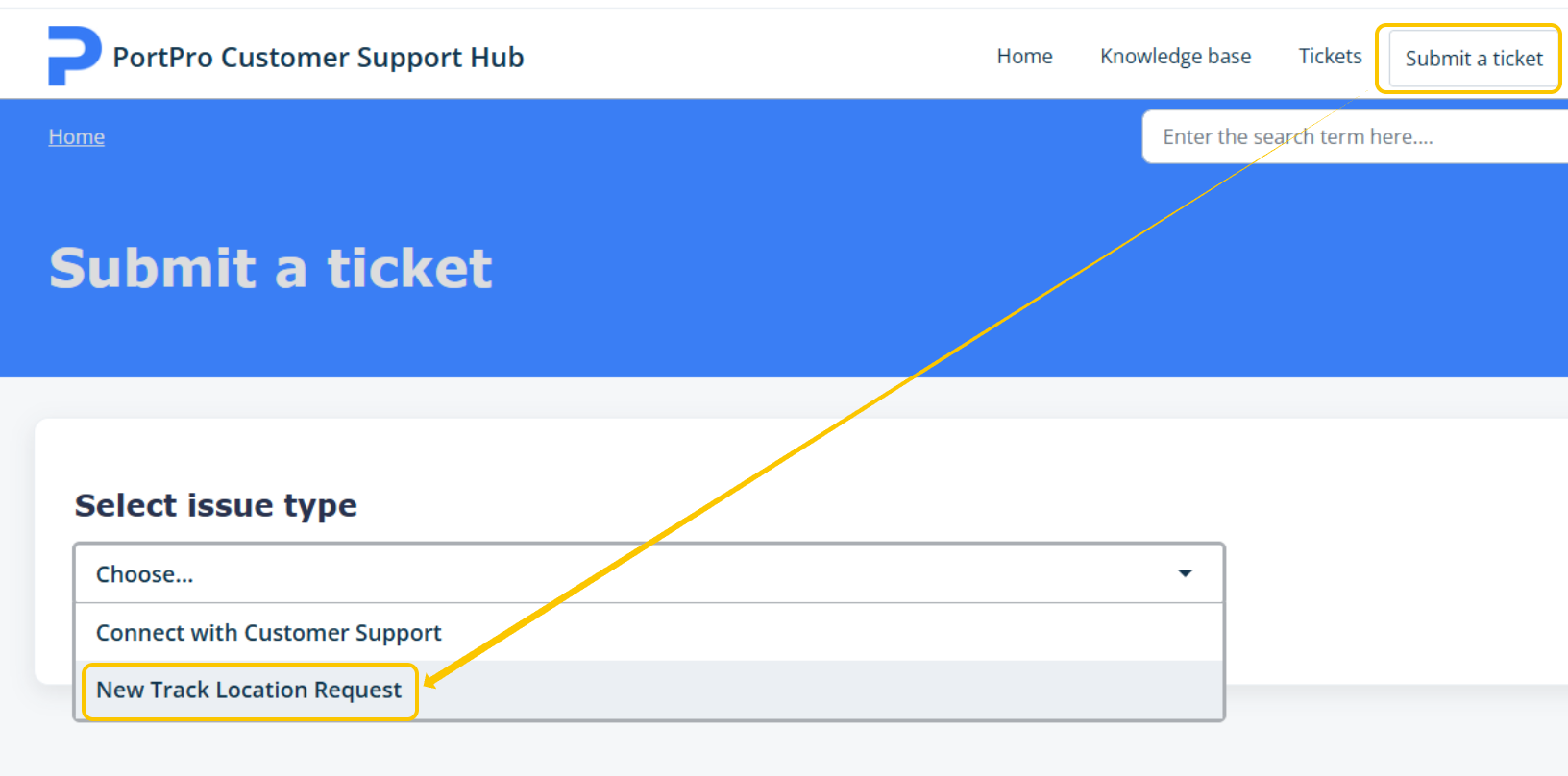
- If a needed terminal is not listed, submit a request to add a label using the New Track Location request form directly from your PortPro Customer Support Ticketing portal.
Updating or Fixing Profile Labels
If you notice a missing or incorrect label on a Terminal Profile, you can update it:
- Navigate to Settings → Terminal Profiles.
- Open the terminal you want to edit.
- If an unassigned Profile Label is available, select it from the dropdown.
- Save your changes
Tip: Use system-generated terminals whenever possible and avoid creating new custom terminals to maintain tracking accuracy and consistency across the platform.
Best Practices
- Add terminal location from Market Selection when operating in a new area.
- Use PortPro-provided terminals for all load creation
- Review Terminal profiles regularly for duplicate or unlabeled profiles
- Avoid creating new terminals unless absolutely necessary
Was this article helpful?
That’s Great!
Thank you for your feedback
Sorry! We couldn't be helpful
Thank you for your feedback
Feedback sent
We appreciate your effort and will try to fix the article